Password Manager vs Browser Password Saving — Which Is Safer?
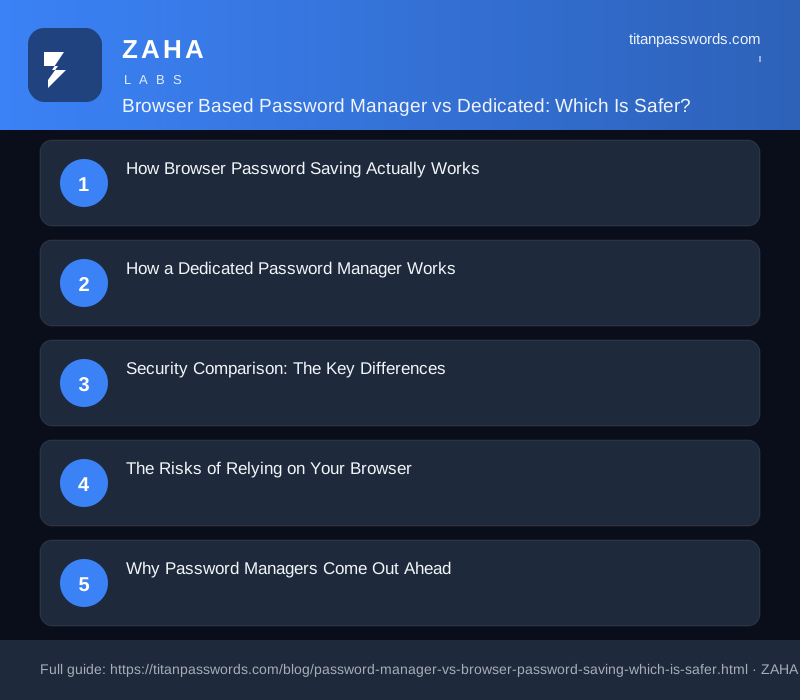
Every time you log into a website, your browser politely asks, "Do you want to save this password?" It feels convenient, and millions of people click "Yes" without a second thought. But convenience and security are not the same thing. As cyberattacks grow more sophisticated and data breaches become daily news, the question of where you store your passwords matters more than ever. In this guide, TitanPasswords breaks down the real differences between using a dedicated password manager and relying on your browser's built-in password saving feature — so you can make an informed decision about protecting your digital life.
How Browser Password Saving Actually Works
When you let Chrome, Safari, Firefox, or Edge save your login credentials, those passwords are stored locally on your device and, in most cases, synced to the cloud through your browser account. The browser then auto-fills your username and password whenever you revisit the site. It's fast, free, and requires zero setup, which explains why it has become the default habit for so many internet users.
However, the underlying security model has notable gaps. While modern browsers do encrypt stored passwords, the encryption is often tied to your operating system login. If someone gains access to your unlocked computer — a coworker, a family member, or a thief — they can frequently view your saved passwords in plain text with just a few clicks through the settings menu. Browser password stores were designed primarily for convenience, not for defending against determined attackers.
How a Dedicated Password Manager Works
A password manager like TitanPasswords is purpose-built for one job: keeping your credentials secure. It stores all of your passwords inside an encrypted vault that is locked behind a single master password. This vault uses strong, industry-standard encryption — typically AES-256 — combined with a zero-knowledge architecture, meaning not even the company hosting your data can read your passwords.
Beyond storage, password managers actively help you build better security habits. They generate long, random, unique passwords for every account, store them automatically, and fill them in across browsers, apps, and devices. Because the password manager operates independently of any single browser, it works seamlessly whether you're on Chrome at work, Safari on your phone, or Firefox at home.
Security Comparison: The Key Differences
When you put the two options side by side, the security advantages of a dedicated password manager become clear. Here are the most important distinctions to understand:
- Encryption strength: Password managers use robust end-to-end encryption with a zero-knowledge model, while browsers often tie encryption to your device login, which can be bypassed if your computer is compromised.
- Master password protection: A password manager requires a separate master password or biometric unlock, adding a critical layer of defense. Browsers frequently expose saved passwords to anyone with access to your unlocked device.
- Cross-platform support: Password managers work across every browser and operating system, whereas browser-saved passwords are usually locked into one ecosystem.
- Password generation: Managers create strong, unique passwords automatically; browsers offer limited or inconsistent generation tools.
- Breach monitoring: Leading password managers alert you when your credentials appear in known data breaches, a feature most browsers lack entirely.
- Secure sharing: Password managers let you share credentials safely with family or team members without exposing the actual password.
The Risks of Relying on Your Browser
Browser password saving carries several hidden risks that most users never consider. First, malware specifically targets browser credential stores. A category of malicious software known as "info-stealers" is designed to harvest saved browser passwords in seconds once it infects a machine. Because these passwords are often weakly protected at the local level, they are an easy and attractive target.
Second, browser-saved passwords are vulnerable when devices are shared or stolen. If you stay logged into your browser account and lose your laptop, whoever finds it may gain access to dozens of your online accounts. Third, browsers rarely encourage strong password hygiene. Many people reuse the same weak password across multiple sites, and the browser happily saves each one without flagging the danger. This means a single breach can cascade into many compromised accounts.
Finally, browser ecosystems lock you in. If you decide to switch from Chrome to Safari, migrating your saved passwords can be clumsy and incomplete, sometimes tempting users to export credentials into unprotected spreadsheets — one of the riskiest things you can do with sensitive data.
Why Password Managers Come Out Ahead
Dedicated password managers were engineered with threat models in mind that browsers simply were not built to handle. The zero-knowledge encryption ensures your data stays private even if the provider's servers are breached. Two-factor authentication on the vault itself adds another barrier, so a stolen master password alone is not enough to unlock your accounts.
Password managers also reduce human error, which is the leading cause of security failures. By generating and remembering unique passwords for you, they eliminate the temptation to reuse credentials. Features like automatic password health reports, dark web monitoring, and secure notes turn your password manager into a complete digital security hub rather than a simple storage box. For families and businesses, encrypted sharing and centralized control make managing access far safer than emailing passwords back and forth.
Are There Any Downsides to Password Managers?
To be fair, password managers are not without trade-offs. They require an upfront commitment to set up, and you must create and remember one strong master password. If you forget that master password and have no recovery method enabled, regaining access can be difficult by design — that very difficulty is what keeps attackers out. Some premium features may also come with a subscription cost, though many managers, including free tiers, offer strong core protection at no charge.
These minor inconveniences are a small price to pay for dramatically stronger security. The few minutes spent setting up a password manager pay dividends every time you avoid a breach, a reused-password disaster, or an info-stealer attack.
The Verdict: Which Is Safer?
For everyday browsing on a personal device with low-stakes accounts, browser password saving is better than nothing and far better than reusing one password everywhere. But when it comes to genuine security, a dedicated password manager wins decisively. Stronger encryption, zero-knowledge privacy, cross-platform flexibility, breach alerts, and intelligent password generation all combine to protect you in ways that browsers were never designed to.
If you're serious about safeguarding your accounts, finances, and personal information, upgrading from browser password saving to a tool like TitanPasswords is one of the simplest and most impactful security decisions you can make. Your passwords are the keys to your digital life — store them somewhere built to keep them safe.
How to Evaluate Whether Your Current Setup Is Secure
Before switching tools or changing habits, it helps to understand what your current password situation actually looks like. Many people discover they have been reusing the same few passwords for years without realizing it.
To check your existing browser-saved passwords, open your browser settings and look for a passwords or autofill section. Most browsers will show you a list of saved credentials and flag any that have been reused across multiple sites. If you see the same password appearing for more than one account, that is a sign your current setup leaves you exposed.
Signs that your password hygiene needs attention include:
- Any password shorter than twelve characters
- Passwords that contain your name, birthday, or a common word
- The same password used on more than one site
- Accounts where you have not changed the password in several years
- Login credentials stored in a notes app, spreadsheet, or text file
What Happens When You Switch Devices or Browsers
One practical limitation of browser-based saving that often goes unnoticed is what happens when your situation changes. If you replace a laptop, switch from one browser to another, or need to log into an account on someone else's device, browser-saved passwords may not be available to you.
Syncing browser passwords across devices requires you to be signed into the same browser account on each device. If you ever lose access to that account, or if you use different browsers on different devices, gaps appear. People often discover this at the worst time, such as when traveling and needing a password they cannot retrieve.
A dedicated password manager stores your credentials in an encrypted vault that is tied to your account rather than to a specific browser or device. This means you can access your passwords from any device and any browser, as long as you can authenticate into the vault itself.
Common Mistakes That Undermine Either Approach
The tool you use matters less than how carefully you use it. Both browser saving and dedicated managers can be undermined by a handful of common errors.
- Using a weak master password: If you protect your vault or browser account with a simple password, that single weak point puts everything at risk.
- Skipping two-factor authentication: Both approaches benefit greatly from enabling two-step verification on the account that controls access to your saved passwords.
- Ignoring breach alerts: Many tools will notify you when a site you use has been involved in a data breach. Dismissing these alerts without acting on them leaves compromised passwords in place.
- Treating the tool as a complete solution: Password managers and browser saving both help with storage and recall, but neither prevents you from choosing a poor password in the first place. Always let the tool generate passwords for you rather than inventing your own.
- Not having a recovery plan: If you forget your master password or lose access to your account, can you still get in? Set up recovery options before you need them.
Practical Steps to Improve Your Password Security Today
Regardless of which approach you use, the following steps will meaningfully reduce your risk.
- Enable two-factor authentication on your email account first, since email is often used to reset every other password you own.
- Generate a new, unique password for any account that currently shares a password with another site.
- Prioritize accounts that hold financial information, medical records, or that are linked to other accounts.
- Make sure the password protecting your vault or browser account is both long and unique, something you do not use anywhere else.
- Test your setup by logging out of an account and logging back in using the saved credentials, so you know the autofill is working correctly before you need it.
Password security does not require perfection. Consistent small improvements, like eliminating reused passwords one account at a time, add up to a meaningfully stronger defense over time. Starting with your most important accounts and working outward is a realistic approach for most people.